
Replacing business computers should not feel like an emergency response. With the right preparation, a Melbourne business can move from ageing PCs to secure, business-grade workstations while keeping staff productive, applications available and important data accounted for.
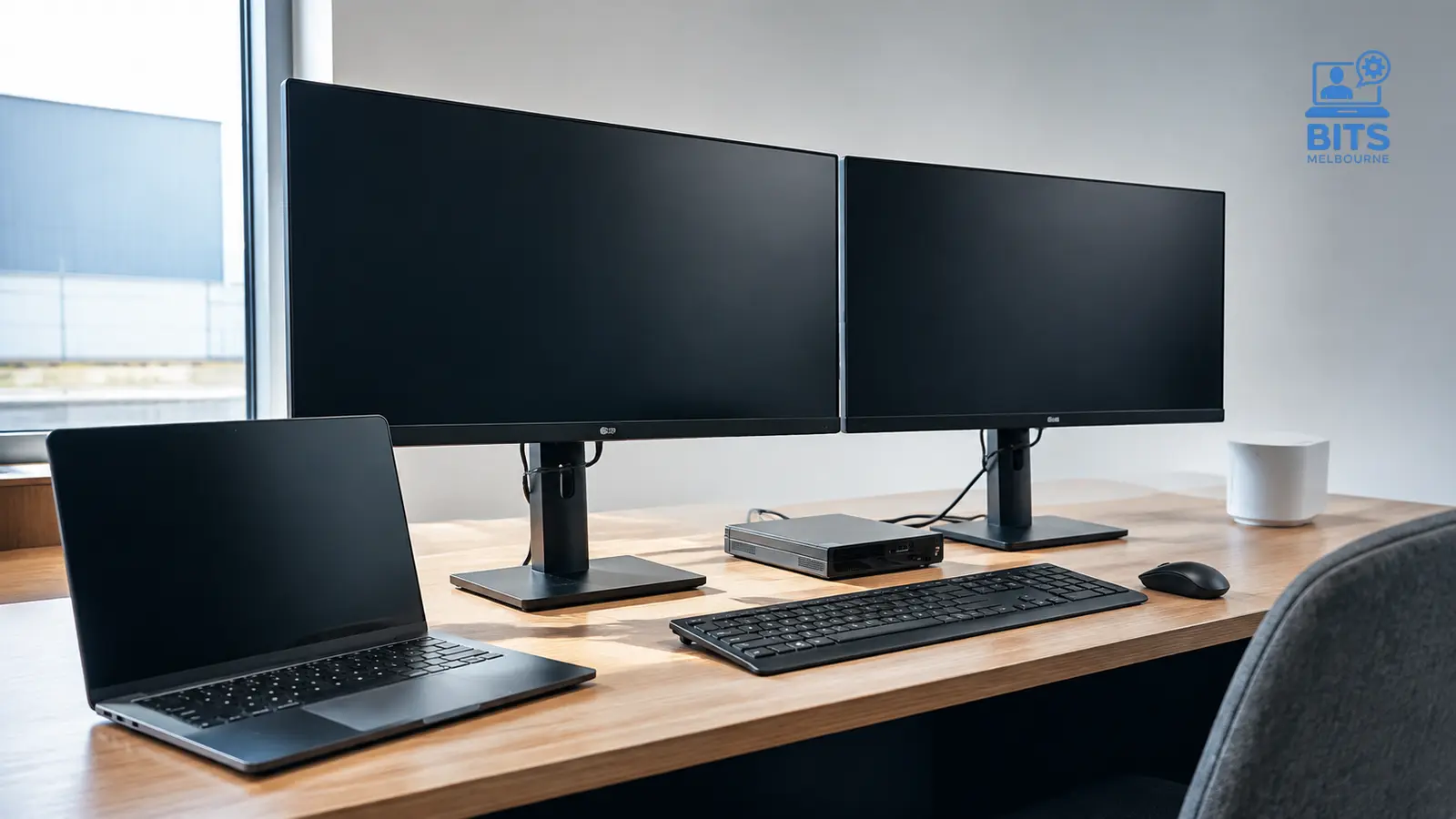
A well-planned computer upgrade combines suitable hardware, careful staging, security configuration and real-world testing.
The computer itself is only one part of the job. A successful upgrade also needs to consider user profiles, Microsoft 365, line-of-business applications, licences, monitors, printers, security tools, backups, device management and the way each person actually works.
That wider view was important during a recent BITS Melbourne project involving new business-grade small form factor computers, dual-monitor workstations and printer deployment. As part of the setup, we also replaced the printers' default administrator passwords instead of leaving a factory credential in place.
This guide explains how to recognise when business computers are due for replacement, why compact business desktops can be an excellent office option, how to reduce disruption during a rollout and why printers must be treated as network-connected devices—not harmless office appliances.
A good computer upgrade is not simply a faster box on a desk. It is a controlled transition that leaves the user, data, applications, security and support arrangements in a better position.
When Should a Business Replace Its Computers?
There is no single replacement age that suits every business. A lightly used reception computer and a workstation running demanding design software have very different requirements. Warranty coverage, operating-system support and the cost of lost time can matter as much as the date on the purchase invoice.
Instead of relying on age alone, look for a pattern of operational warning signs:
Staff regularly wait for computers to start, sign in or open everyday applications
Video calls, browser tabs or Microsoft 365 applications cause frequent slowdowns
Devices are no longer compatible with a supported operating system
Storage is consistently full or the device relies on an ageing mechanical hard drive
Repairs and intermittent faults are becoming more frequent
Batteries, ports, fans or power supplies are failing
Important applications need more memory, processing capacity or newer security features
Computers are outside warranty and a failure would leave a key employee unable to work
Different generations of equipment have made support and spare parts unnecessarily complicated
One slow computer may be a local problem. Several slow or unsupported computers usually point to a lifecycle issue. Planning the replacement before a critical failure gives the business time to choose suitable equipment, confirm compatibility and schedule the change around real work.
Why Small Form Factor PCs Work Well in Business Offices
A small form factor PC is a compact desktop computer designed to deliver normal business performance without occupying the space of a traditional tower. It can sit neatly on a desk, mount behind a compatible monitor or remain accessible near the display for easier servicing.
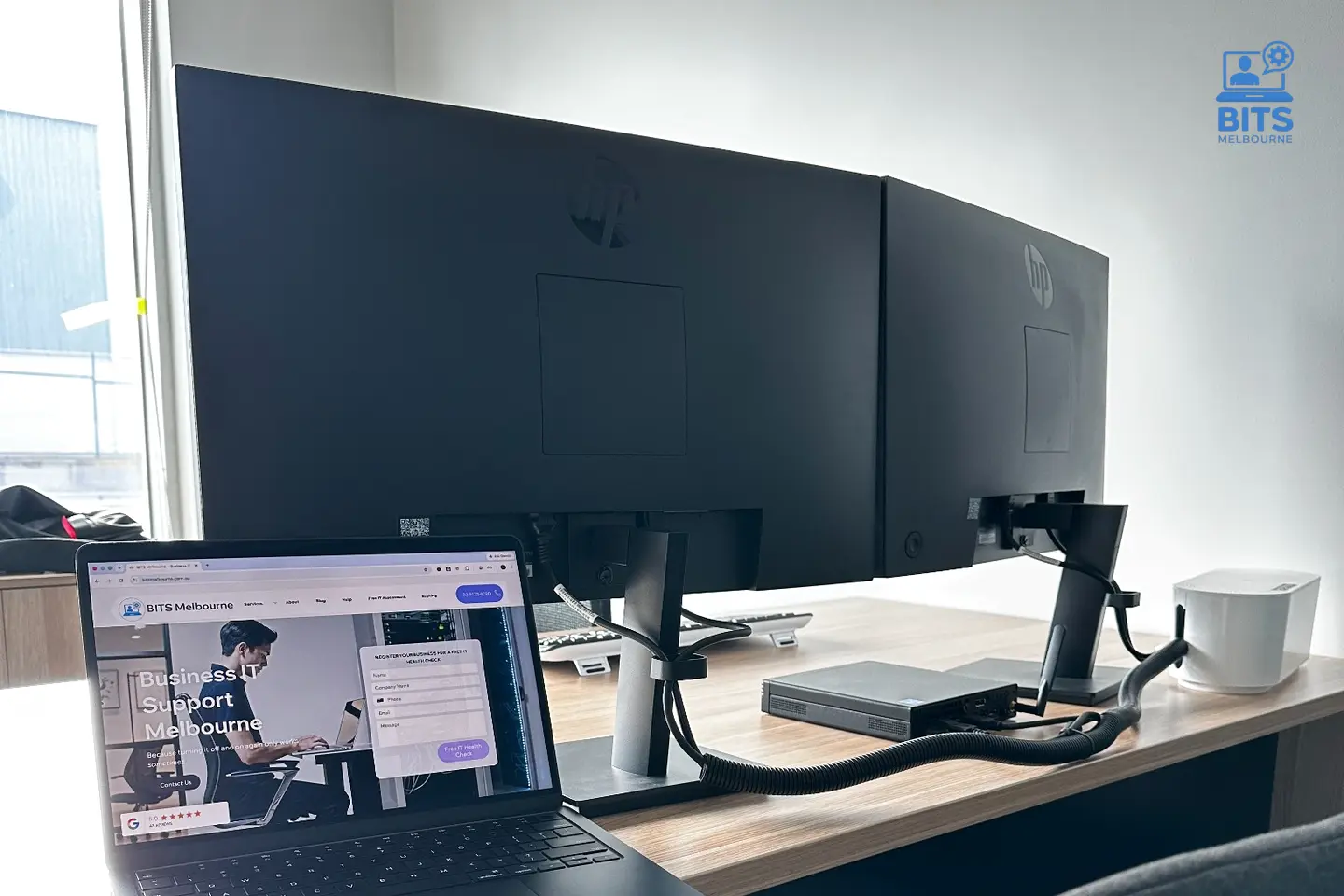
A compact business desktop can provide a tidy, supportable workstation while retaining the benefits of a dedicated office computer.
For many office roles, this format offers a useful balance of size, performance and supportability.
More Desk Space Without Compromising the Workstation
Compact desktops leave more room for documents, input devices and monitor arms. This is particularly helpful where two displays are used or where a full tower would otherwise sit awkwardly under the desk.
A Consistent Hardware Standard
Buying a defined business model across the organisation makes deployment and support more predictable. Memory, storage, drivers, firmware, docks and warranty arrangements are easier to document when every workstation is not a different retail configuration.
Suitable Connectivity for Office Work
A properly selected small form factor PC can support dual displays, wired networking, USB peripherals and the performance required for Microsoft 365, cloud applications, accounting platforms, browser-based systems and many other common business workloads.
Business Warranty and Support Options
Business-grade equipment is generally selected for ongoing availability, serviceability and commercial support rather than the lowest promotional price. The exact warranty varies by vendor and model, so it still needs to be checked before purchase.
Lower Physical Clutter
Compact equipment does not automatically create a tidy desk, but it makes good cable management and monitor placement easier. A clean installation also makes it simpler to identify power, network and display connections when support is needed.
Business-Grade vs Consumer Computers
A consumer computer may look impressive on a specification sheet, but a business purchase should be judged across the full working life of the device.
| Consideration | Business-grade approach | Why it matters |
|---|---|---|
Hardware consistency | Stable model ranges and repeatable configurations | Easier deployment, driver management and replacement planning |
Security | Features such as TPM support, firmware controls and business management options | Supports encryption, secure configuration and managed device standards |
Operating system | A suitable business edition selected for the organisation | Helps support identity, policy, encryption and management requirements |
Warranty | Commercial support terms appropriate to the role | Reduces uncertainty when a business-critical device fails |
Lifecycle | Planned purchasing and replacement standard | Avoids a collection of unrelated devices with different limitations |
This does not mean every employee needs the most expensive computer. It means each device should be fit for the role, compatible with the business environment and supported for the period the organisation expects to use it.
Recent Project: Compact PCs, Dual Monitors and Secure Printers
The recent work shown in these photographs is a useful example of why an upgrade should be treated as a complete workstation project.
The brief included replacing computers with new business-grade small form factor PCs, preparing the connected workstations and setting up new printers. The office used dual displays and everyday peripherals, so the finished result depended on more than powering on the new computers.
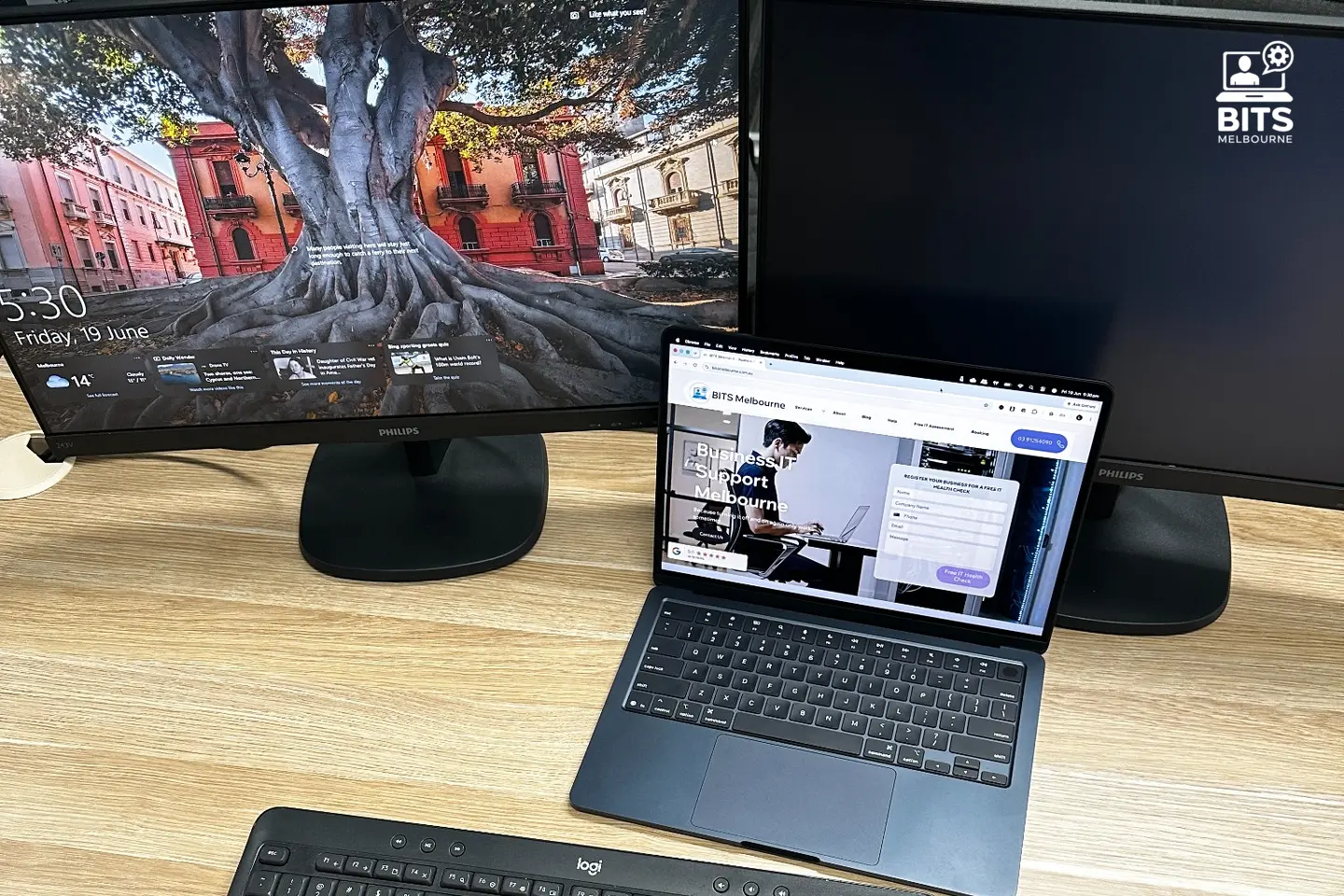
Real deployment testing helps confirm that displays, peripherals, network access and the user's working environment operate together.
The project work included:
Preparing the new small form factor computers. The devices were positioned as compact office workstations rather than oversized towers occupying valuable desk space.
Connecting and checking the workstation equipment. Dual monitors, keyboards, mice and the wider desk setup needed to operate correctly as one usable system.
Installing the new printers. A printer is only useful when the correct users can print reliably and its network configuration is understood.
Replacing default administrator passwords. Factory credentials were not left in place after installation.
Validating the result. A workstation should be tested in the real environment before the project is considered complete.
We have intentionally not identified the customer or shown sensitive business information. The photographs provide genuine evidence of the type of onsite work completed while respecting the client's privacy.
Why Printer Default Passwords Must Be Changed
Modern multifunction printers can have a web administration page, network services, an address book, scan-to-email settings, stored jobs and firmware that needs updating. In other words, they are network-connected computers with paper handling attached.
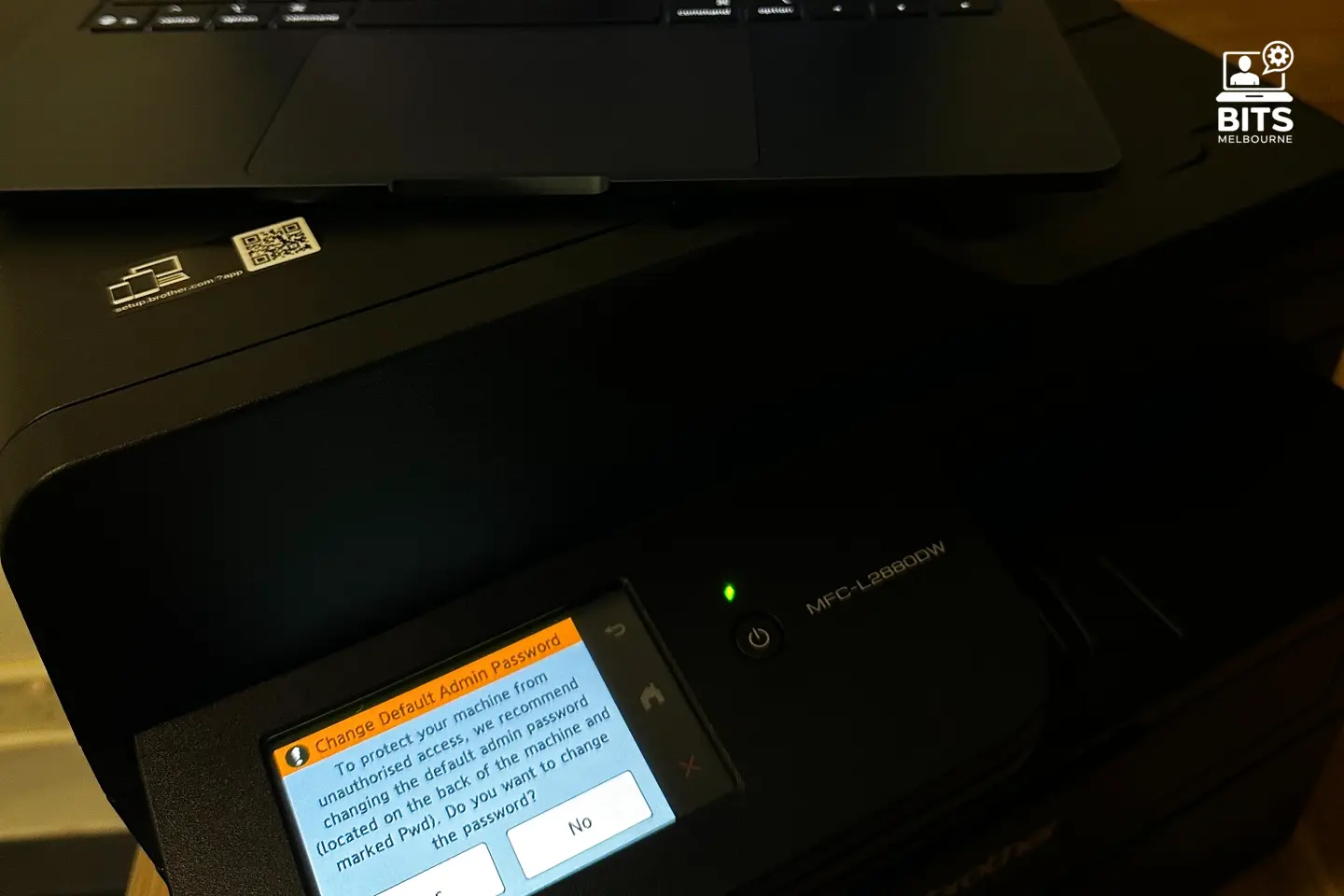
The printer itself prompts for its default administrator password to be changed—a step that should be completed and documented during deployment.
A default administrator credential may be printed on the device, listed in public documentation or shared by many units of the same model. Leaving it unchanged can allow someone with network access to alter settings that should be restricted.
Depending on the printer and its configuration, unauthorised administration could affect:
Network settings and availability
Scan-to-email destinations or address-book entries
Administrative users and access controls
Firmware, remote management and enabled services
Stored jobs, logs or other information handled by the device
Changing the password is important, but it is only one part of a sensible printer-security baseline. A business printer deployment should also consider:
Installing current supported firmware
Using a unique, securely stored administrator password
Restricting management access to trusted networks or administrators where supported
Disabling unnecessary protocols and remote services
Configuring scan-to-email securely
Separating guest devices from business printers
Recording the model, serial number, network address, warranty and configuration
Reviewing whether confidential or secure-print features are appropriate
This is a small example of a broader security principle: every device should leave installation with deliberate settings, not whatever happened to be enabled at the factory.
A Six-Stage Business Computer Upgrade Plan
The safest rollouts follow a repeatable process. The detail changes between organisations, but the sequence below helps uncover problems before they reach an employee's desk.
1. Inventory the Existing Environment
List the current computers, users, operating systems, applications, monitors, printers and special peripherals. Identify devices connected to scanners, label printers, EFTPOS equipment, machinery or other systems that may require specific ports or drivers.
This discovery stage should also record who owns important data, where it is stored and whether a reliable backup exists before migration begins.
2. Define the User Requirements
A finance user with several spreadsheets, a designer, a warehouse employee and a reception team should not automatically receive the same specification. Review real application requirements, display needs, mobility, storage and expected growth.
The objective is to create a small number of sensible standards—not a unique computer for every person and not one underpowered model forced into every role.
3. Stage the Devices Before the Cutover
Where practical, install updates, configure security, prepare applications and confirm licensing before the onsite change. Staging reduces the amount of uncertain work performed while the employee is waiting.
It also creates an opportunity to identify missing licences, incompatible software or unusual hardware requirements before the old computer is disconnected.
4. Migrate Data and User Settings Carefully
Business information can be spread across local folders, OneDrive, SharePoint, browser profiles, accounting data, email archives and application-specific locations. Migration should begin with an agreed scope rather than assuming every important file is already in the cloud.
Confirm what is being transferred, what is already synchronised, which data should be archived and who will verify the result. A backup or recovery path should exist before anything is removed from the old device.
5. Apply a Security Baseline
A new computer should not be handed over with only an employee name and Wi-Fi password. Depending on the business, a managed baseline may include:
A supported operating system with current updates
Device encryption such as BitLocker where appropriate
Endpoint protection and managed detection
Remote monitoring and patch management
DNS or web protection
Standard-user access for everyday work
Separate, protected administrator credentials
Microsoft 365 sign-in with multi-factor authentication
Approved applications and removal of unnecessary trial software
Documented backup and recovery arrangements
Our guides to Microsoft 365 MFA, business password managers and DNS filtering explain several of these layers in more detail.
6. Test With the User's Real Workflow
A technical sign-in test is not the same as a completed handover. Open the applications the employee relies on, confirm access to shared data, test printing and scanning, check both displays, verify audio and cameras for meetings and make sure important browser bookmarks or profiles are available where they were included in scope.
Only then should the old computer be set aside for secure retention, data removal, recycling or another approved use.
How to Reduce Downtime During a Computer Rollout
The most effective way to reduce downtime is to move uncertainty away from the cutover window.
Useful techniques include:
Ordering a consistent hardware model instead of unrelated retail devices
Confirming stock, warranties and lead times before setting a rollout date
Testing important applications on the proposed platform
Preparing accounts, licences and security policies in advance
Staging devices before visiting the desk
Upgrading users in manageable groups rather than changing everyone at once
Scheduling complex users or critical departments with additional contingency time
Keeping the old device intact until the replacement has been verified
Providing one clear support contact for post-migration questions
For a small office, a single planned change window may be practical. For a larger organisation, a pilot user followed by staged groups often provides better control. The rollout method should reflect business hours, application dependencies and the consequences of a delay.
What Should Happen to the Old Computers?
Old computers should not simply be placed in a storeroom with business information still accessible.
Before reuse, disposal or recycling, decide whether the device must be retained temporarily as a rollback option. Once retention is no longer required, business data should be handled through an approved sanitisation or destruction process appropriate to the storage device and the sensitivity of the information.
Also update asset records, remove the device from management and security platforms, recover reusable licences where permitted and confirm whether the equipment will be redeployed, securely recycled or physically destroyed.
Common Upgrade Mistakes to Avoid
Buying only on processor speed. Memory, storage, warranty, operating-system edition, ports and supportability all affect the final result.
Assuming cloud sync equals complete backup. Verify the actual data and recovery options before disconnecting the old device.
Forgetting specialist peripherals. Scanners, label printers, serial devices, webcams and monitor connections can delay a rollout if compatibility is checked too late.
Giving every user administrator access. Convenience during setup should not become permanent excessive privilege.
Leaving factory passwords in place. Printers, firewalls, switches, access points and other devices require deliberate credential management.
Disposing of the old device too quickly. First confirm the user's real workflow, data and applications on the replacement.
Treating documentation as optional. Asset details, warranties, recovery keys, administrator access and configuration decisions should be recorded securely.
Business Computer Upgrade Checklist
Before approving a rollout, confirm that the plan covers the following:
Users and role requirements have been documented
Important applications and peripherals have been checked for compatibility
The selected devices are business-grade and fit for the expected workload
Warranty and support arrangements are understood
Important business data has a verified migration and recovery plan
Microsoft 365, licences and line-of-business applications are ready
Updates, encryption, endpoint protection and management tools are configured
Employees will use standard rather than unrestricted administrator access
Printers and other network devices have unique administrator passwords
Dual monitors, webcams, audio, printing and scanning will be tested
Old devices have an approved retention and data-disposal process
Staff know where to request help after the change
Businesses and internal IT teams can also use ad hoc IT support for a defined computer rollout, onsite installation or temporary project capacity without entering a managed contract.
How BITS Melbourne Can Help
BITS Melbourne provides business IT support in Melbourne for organisations that need to replace individual computers or plan a wider workstation refresh.
We can help assess the current environment, select suitable business-grade equipment, stage devices, coordinate deployment, configure security, install printers, test user workflows and document the finished environment. Where the upgrade is part of a wider change, our IT projects and consulting service can also cover networks, office moves, cloud systems and other dependencies.
For ongoing support, monitoring, patching and lifecycle planning, learn more about our managed IT services. If you are unsure which computers need attention first, a free IT assessment is a practical starting point.
Frequently Asked Questions
How often should a business replace its computers?
There is no universal timetable. Review device performance, operating-system support, warranty status, workload, reliability and the business impact of a failure. Lifecycle planning should identify replacement candidates before they become urgent.
Are small form factor PCs powerful enough for business use?
Yes, when correctly specified for the role. They are well suited to many office, cloud, Microsoft 365, accounting and browser-based workloads. Demanding design, engineering or data tasks may require a different specification or workstation class.
Can computers be upgraded without losing data?
A planned migration should transfer the agreed data and settings, but no process should rely on assumption. Confirm where business information is stored, establish a backup or recovery path, define the migration scope and verify the result before retiring the old device.
Should employees have administrator access on new computers?
Most employees should use standard accounts for normal work. Administrator access should be limited, protected and used only when required. This reduces the ability of unwanted software or a compromised account to make system-wide changes.
Do printer passwords really matter?
Yes. Business printers can expose administrative settings, network configuration, address books and services through a management interface. Default credentials should be replaced with unique passwords and stored securely as part of the deployment documentation.
Can BITS Melbourne supply and install the equipment?
Yes. BITS Melbourne can help select, supply, configure and deploy business computers, printers and related workstation equipment, then provide remote or onsite support after installation.
Plan the Upgrade Before the Failure
A computer replacement is easiest when the business still has time to make good decisions. By standardising suitable hardware, staging devices, protecting data, applying a security baseline and testing each person's real workflow, an upgrade can become a controlled improvement instead of an emergency.
The same care should extend to printers and every other network-connected device. Changing default administrator passwords may take only a few minutes, but it demonstrates the difference between simply connecting equipment and deploying it properly.
If your Melbourne business is relying on slow, unsupported or inconsistent computers, book a free IT assessment with BITS Melbourne. We will review the current environment, explain the practical priorities and help build an upgrade plan around the way your team works.
How BITS Melbourne can help
BITS Melbourne works with small and growing organisations across Melbourne to assess technology, resolve recurring problems and build practical long-term improvements. You deal directly with experienced technicians who can support users remotely, attend onsite and connect the issue to the wider business environment.