
A new computer setup for office staff should finish with a person ready to work—not with a sealed box sitting beside a desk. The hardware matters, but so do the email account, shared files, security controls, updates, applications, network access and the final checks that confirm the employee can complete their real tasks.
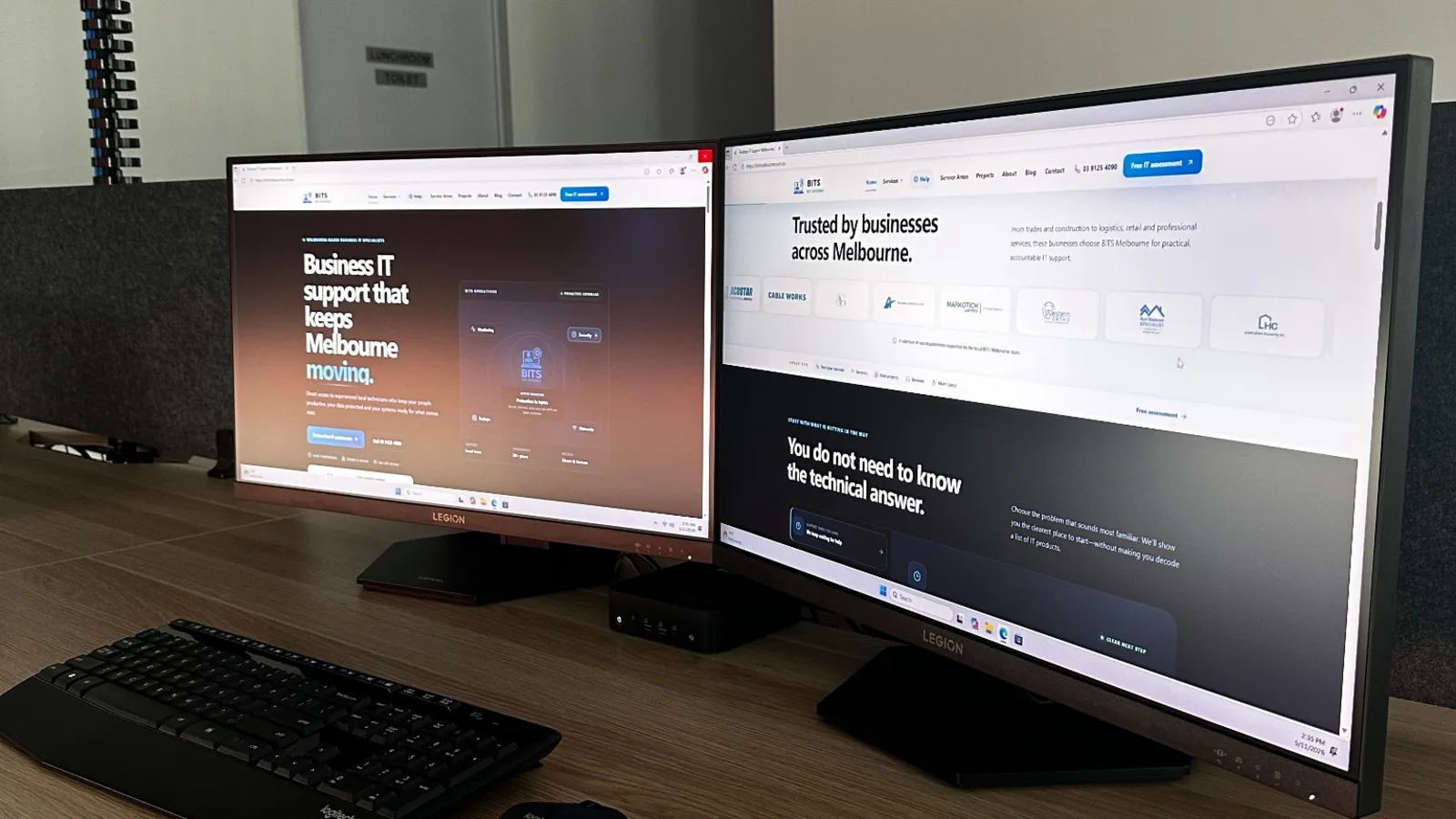
A completed office workstation should combine suitable hardware, network access, business email and managed security in one ready-to-use setup.
BITS Melbourne recently supplied and configured two compact workstations for a logistics business with offices in Derrimut and Sunshine. Each mini PC was selected to preserve valuable desk space while providing an AMD Ryzen 7 processor, 32GB of memory and 1TB of storage. The devices can use Wi-Fi 7 and also support 2.5Gb Ethernet where a suitable wired connection is available.
The project is a useful example of what a complete office computer setup in Melbourne should include. BITS Melbourne provided the hardware, connected staff to the network drives they rely on, configured email, applied security and patching, enabled email filtering and tested the finished workstations onsite.
What Is Included in a Professional Office Computer Setup?
A professional business workstation setup brings the physical computer and the organisation's working environment together. The exact scope changes between businesses, but a complete deployment commonly includes:
Choosing and supplying hardware suited to the employee's role
Preparing the operating system and installing current updates
Connecting monitors, keyboard, mouse and approved peripherals
Configuring the employee's business identity and email
Providing access to network drives, shared files and cloud applications
Installing endpoint security, monitoring and patch-management tools
Applying email filtering and other agreed security controls
Testing Wi-Fi or Ethernet connectivity in the real office
Confirming the user's normal applications and workflow
Recording the device, configuration and support details
This end-to-end approach reduces the gap between buying a computer and putting it into productive service. It also gives the business one accountable partner for procurement, configuration, installation and ongoing support.
Start With the Employee's Work, Not a Retail Specification
Two computers can share a similar price while being suited to very different jobs. Before purchasing, identify what the employee actually does: the applications they use, the number of browser tabs or spreadsheets they keep open, whether they work with large files, how many monitors they need and which printers, scanners or specialist devices must connect.
A dispatcher working across a transport platform, email, browser applications and shared files may need a different setup from a finance user managing large spreadsheets or a designer working with media. The objective is not to buy the highest specification for every person. It is to establish a small number of sensible business standards that are fast enough today, supportable over their expected life and consistent across the team.
For the logistics office project, the compact Ryzen 7 systems with 32GB RAM and 1TB storage provided a strong office platform without placing a conventional tower on either desk. The specification also gives the business useful headroom for multitasking and future software requirements.
Why Compact Mini PCs Suit Modern Offices
A mini PC can be a practical business workstation when it is selected for the workload and has the required ports, warranty and support options. Its smaller footprint leaves more space for documents, phones and input devices and can make a dual-monitor desk feel less crowded.
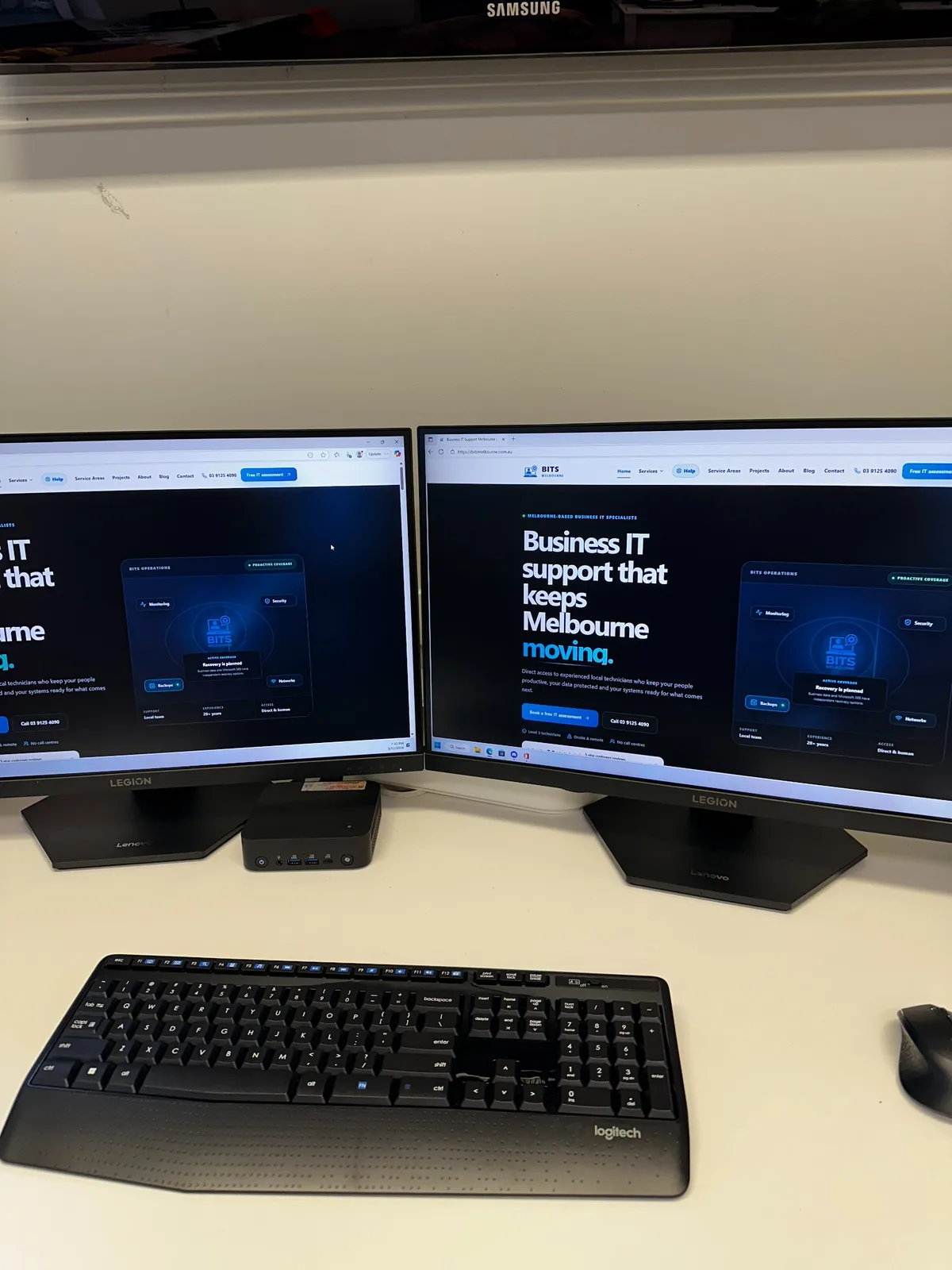
The mini PC sits neatly between the displays, leaving the employee with a clean desk and straightforward access to the device.
Size alone should not make the decision. A business mini workstation still needs adequate cooling, serviceable storage and memory, the correct display outputs, enough USB connectivity and a commercial support path. Confirming those details before purchase helps avoid adapters, replacement docks or other surprises during installation.
How Much Processor, RAM and Storage Does Office Staff Need?
There is no universal specification for every office employee, but the following questions create a useful starting point.
| Component | What to assess | Why it affects the rollout |
|---|---|---|
Processor | Applications, multitasking, browser workload and expected device life | An underpowered processor can make a new computer feel old too soon, while an excessive specification adds cost without helping the role. |
Memory | Concurrent applications, large spreadsheets, browser tabs and specialist software | Enough RAM helps the user move between everyday tools without constant slowdowns. |
Storage | Local files, application size, offline access, growth and cloud-sync requirements | Capacity should include working room, but business data should not be left unmanaged simply because the drive is large. |
Displays | Number, resolution, physical size and required outputs | Dual monitors can improve many office workflows, but the computer must support them reliably. |
Connectivity | Wi-Fi standard, Ethernet speed, USB devices and office network design | The workstation should connect properly to the environment around it rather than creating a new bottleneck. |
For the two logistics workstations, Ryzen 7 processors, 32GB of RAM and 1TB drives formed a consistent hardware standard. The same configuration at both offices also makes future support, replacement planning and troubleshooting more predictable.
Wi-Fi 7 or 2.5Gb Ethernet?
The installed mini PCs support modern Wi-Fi 7 connectivity and 2.5Gb wired Ethernet. That provides flexibility, but the fastest label on a computer does not guarantee the same end-to-end speed in every office.
Wi-Fi performance depends on the access points, client compatibility, distance, interference, building materials and how the wireless network is configured. A Wi-Fi 7 capable computer can still connect at an older standard when the rest of the network does not support Wi-Fi 7. For general office work, well-designed wireless connectivity can be convenient and entirely suitable.
Wired 2.5Gb Ethernet can provide a stable connection for large file transfers or roles that benefit from predictable local network performance, but the switch, cabling and destination also need to support the desired rate. The sensible decision is based on the employee's work and the existing network—not on a headline number alone. BITS Melbourne can review the wider office network and Wi-Fi environment when workstation performance depends on it.
Business Email and Identity Setup
Signing into email is one of the most visible parts of a new computer setup, but the business identity behind that sign-in is more important. The employee should receive the right mailbox, licences, groups, shared mailboxes and approved access without being given privileges they do not need.
A repeatable setup process should confirm:
The employee is using an organisation-controlled account
Multi-factor authentication is configured where required
Microsoft 365 or other business applications are correctly licensed
Outlook and approved mobile access are working
Shared mailboxes, calendars and distribution groups are available
Administrator access is separate from everyday use
This work should align with the organisation's onboarding process. A new computer can be physically perfect while the employee remains blocked by a missing licence, approval or shared mailbox.
Network Drive and Shared File Access
Network drives and shared folders often contain the operational information office staff need immediately. Access should be based on the person's role, tested with their account and documented so the mapping can be reproduced later.
During the Derrimut and Sunshine rollout, BITS Melbourne configured the required network drive access as part of the workstation deployment. This meant the finished setup included the files and locations staff use, not just a working internet connection.
Testing should cover more than whether a drive letter appears. The user should be able to open the required folders, create or update information where authorised and reconnect after a restart. If the business uses SharePoint, OneDrive or another cloud platform, sync and permissions need the same care.
Security, Patching and Email Filtering From Day One
A new device should enter service with the organisation's security baseline already applied. Leaving this work until later creates a period when the computer is handling business email and files without the normal protection or visibility.
Depending on the environment, a baseline may include endpoint protection, remote monitoring, managed patching, secure DNS or web controls, device encryption, protected administrator credentials and a supported operating system. The final configuration should be deliberate and consistent with the business's other managed devices.
Email filtering is also part of the workstation experience even though the control may sit in the mail environment rather than on the PC. Layered filtering can help identify phishing, malicious attachments, impersonation attempts and unwanted messages before they reach staff. No filter is perfect, so employee reporting and a clear support pathway remain important. Learn more about BITS Melbourne's managed security services.
Managed patching helps keep supported operating systems and applications current after the initial setup. That turns a one-day installation into a device that can continue receiving routine maintenance rather than quietly drifting away from the standard.
A Practical Office Workstation Rollout Process
A controlled process moves uncertainty away from the employee's first day on the new computer.
1. Discover the role and environment
Record the user's applications, accounts, data, displays, printers, scanners and special peripherals. Confirm how the workstation will connect at the office and whether work moves between locations.
2. Select and procure suitable hardware
Choose a business-grade device that meets the real workload, connectivity, warranty and lifecycle requirements. Standardise the configuration where several staff perform similar roles.
3. Stage the device before installation
Apply updates, install approved software, prepare security and management tools and confirm licences before the old computer is disconnected or the employee is waiting.
4. Configure identity, email and data access
Sign in with the correct business account, configure email and shared mailboxes, map network drives or cloud storage and provide only the permissions required for the role.
5. Install and test onsite
Connect the monitors and peripherals, validate Wi-Fi or Ethernet, test printing and shared data, and check the applications the employee actually uses. A successful login is not a complete acceptance test.
6. Document and support the result
Record the device, warranty, assigned user, security tooling and important configuration. Tell staff where to request help and include the workstation in patching, monitoring and lifecycle reviews.
Multi-Site Computer Setup for Derrimut and Sunshine Offices
Multiple offices make consistency more valuable. A standard workstation build reduces variation between sites and gives employees a familiar environment if they move between locations. It also helps the support team know what should be installed, how access is granted and which network conditions to expect.
For a logistics business, the technology also needs to fit the pace of operations. Office staff may rely on cloud portals, shared documents, email and internal resources throughout the day. The workstation rollout therefore needs to be coordinated around access, connectivity and security rather than treated as a standalone hardware delivery.
BITS Melbourne provides local IT support in Derrimut, IT support in Sunshine and across Melbourne, with remote and onsite assistance available according to the issue.
Office Computer Setup Checklist
The employee's role, applications and peripherals have been confirmed
The computer specification and warranty suit the expected workload
Operating system, firmware and approved applications are current
Email, MFA, shared mailboxes and licences are working
Network drives or cloud file locations are accessible with correct permissions
Endpoint security, monitoring and patching are active
Email filtering and agreed identity controls are applied
Wi-Fi or Ethernet has been tested at the actual desk
Monitors, keyboard, mouse, audio, camera and printers have been checked
The user's real workflow has been verified
Device and support documentation has been updated
Frequently Asked Questions
Can BITS Melbourne supply and install new office computers?
Yes. BITS Melbourne can recommend and supply suitable business hardware, prepare the devices, install them onsite, configure accounts and access, apply security and provide ongoing support.
Are mini PCs powerful enough for office staff?
Yes, when the device is correctly specified for the role. A compact computer can provide strong office performance while using less desk space, but the processor, memory, storage, connectivity, ports and warranty still need to be assessed.
Can you set up network drives and Microsoft 365 email?
Yes. A rollout can include business email, Microsoft 365 applications, shared mailboxes, network drives, SharePoint, OneDrive and other approved services, subject to the business's existing environment and licensing.
Do new computers need security and patch management immediately?
They should enter service with the agreed business baseline applied. Endpoint protection, patching, monitoring, identity controls and email security are more effective when they begin before the device handles normal business work.
Should office computers use Wi-Fi or Ethernet?
Either can be suitable. The choice depends on the role, office network, cabling, mobility and performance requirements. Wi-Fi 7 and 2.5Gb Ethernet only deliver their full capability when the surrounding infrastructure is also compatible.
Plan the Complete Setup, Not Just the Computer
The Derrimut and Sunshine project demonstrates the difference between delivering hardware and delivering a usable business workstation. The two mini PCs save desk space while providing Ryzen 7 performance, 32GB RAM, 1TB storage, Wi-Fi 7 capability and 2.5Gb Ethernet. More importantly, staff received the network drives, email, security, patching and filtering required to work within the company's existing environment.
For related planning advice, read our business computer upgrade guide or view the complete Derrimut and Sunshine workstation project.
If your business is adding staff, replacing ageing computers or standardising devices across offices, BITS Melbourne can manage the process from hardware selection to final handover. Explore our business IT support in Melbourne or book a free IT assessment to discuss the rollout.
How BITS Melbourne can help
BITS Melbourne works with small and growing organisations across Melbourne to assess technology, resolve recurring problems and build practical long-term improvements. You deal directly with experienced technicians who can support users remotely, attend onsite and connect the issue to the wider business environment.