
An office can have a brand-new 2Gb internet service and still feel slow, inconsistent or difficult to support. The connection entering the building is only one part of the path. The gateway, switch, cabling, access points, device capabilities, wireless interference and configuration all determine what staff experience at their desks.
This becomes especially important when a business moves into an existing office. Previous tenants may leave behind switches, loose patch leads, old wireless equipment and wall ports with no reliable documentation. Some cabling may be useful, some may be disconnected and some equipment may restrict the faster service the new business intends to use.

A successful office network upgrade connects the internet service, wired infrastructure, Wi-Fi design, security boundaries, testing and documentation under one practical plan.
BITS Melbourne recently completed this type of project for a new customer in Fitzroy. The business had moved into a large open-plan office and needed help selecting the right internet plan, replacing the inherited network core, cleaning the communications cabinet and providing reliable wireless coverage.
The final environment included a multi-gig gateway suitable for the new 2Gb service, a managed switch, two business access points, separate corporate, guest, IoT and CCTV networks, Wi-Fi heatmaps, radio tuning and a documented handover. An onsite test recorded 2,094.6 Mbps download and 512.6 Mbps upload with 1 ms latency in the test view.
You can see the genuine installation photographs and complete project breakdown in our Fitzroy office network and Wi-Fi upgrade case study. This guide uses that real project to explain how Melbourne businesses can plan an office network upgrade without creating new bottlenecks or leaving the finished system difficult to support.
The objective is not simply to make a speed test look impressive. It is to give staff dependable access, keep different device groups appropriately separated and leave the business with a network that can be understood, maintained and expanded.
Why Faster Internet Does Not Automatically Mean a Faster Office
A business internet plan describes the potential capacity available at the service edge. It does not guarantee that every laptop, phone or wireless device will receive that speed. Each part of the path can impose its own limit.
For example, a 2Gb service can be restricted by:
A gateway with a 1Gb WAN or LAN interface
A switch that only provides 1Gb links to critical devices
An undersized uplink between the gateway and switch
Older access points or access points connected through slower cabling
Poor access-point placement, excessive radio power or congested channels
Client devices that only support older Wi-Fi standards
Damaged, incorrectly terminated or unidentified cabling
Security inspection or traffic policies that exceed the gateway's real throughput
Applications or remote services that cannot send data at the same rate
A useful design therefore starts by mapping the complete path. The internet service, gateway performance, switching capacity, uplinks, access points and important wired devices should be considered together. Our business internet services and network upgrade services are designed to connect those decisions rather than treating the carrier plan and internal network as separate purchases.
Step 1: Audit the Existing Communications Cabinet
When a business inherits an office, the communications cabinet often tells the story of several previous changes. New equipment may have been added without removing the old equipment. Patch leads may disappear into panels without labels. Power supplies may remain connected after their devices have been retired. A functioning cable can be difficult to distinguish from one that has been disconnected at the far end.
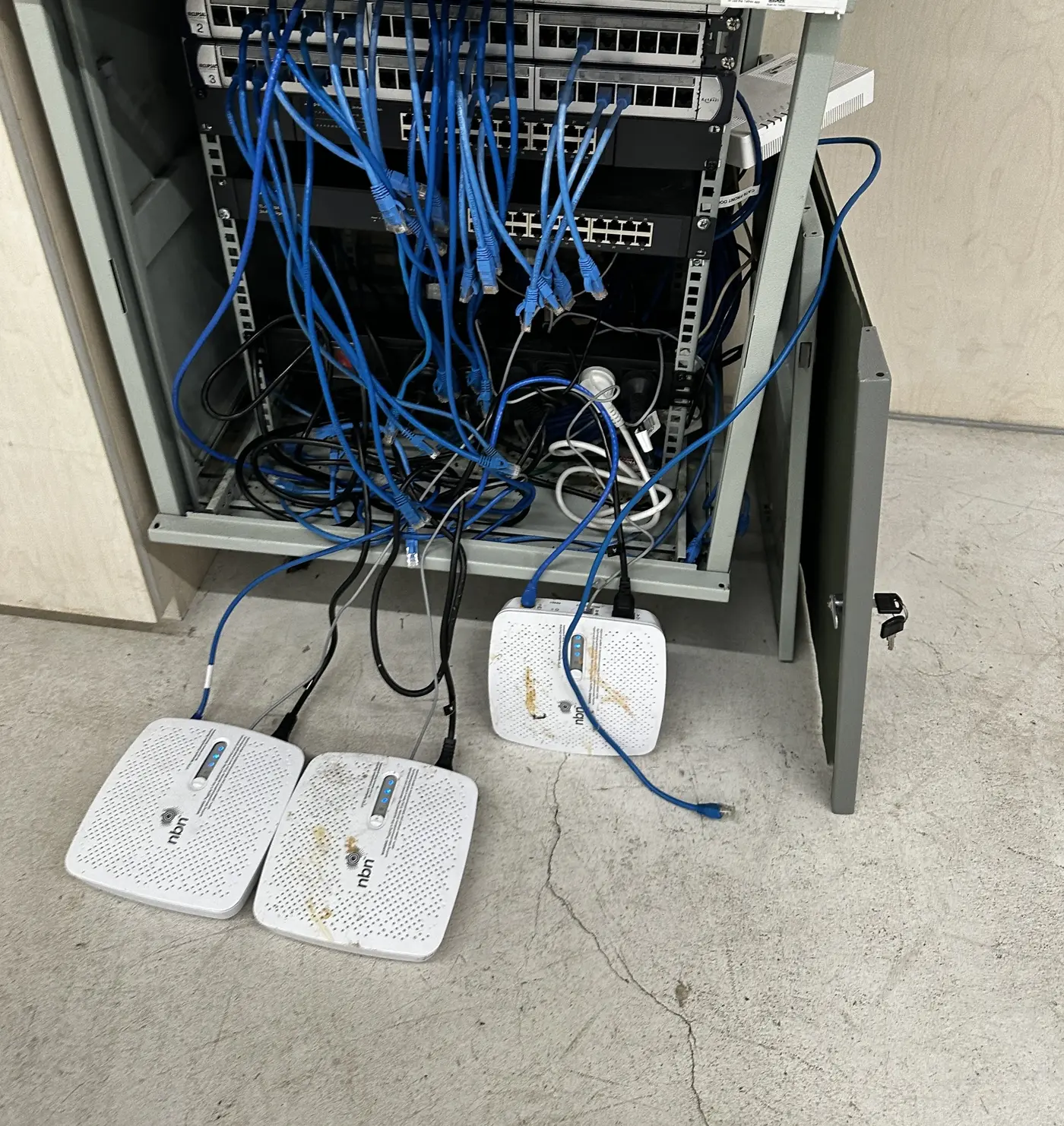
The original cabinet contained old network devices, loose patch leads and unverified connections that needed to be tested before the new installation.
Removing everything immediately is risky. A cable that looks unused may serve a door controller, camera, printer, access point or another system that is not obvious from the cabinet. The safer process is to identify, test and trace the environment before retiring equipment.
A practical cabinet audit should record:
The internet connection and its handoff point
Every active gateway, router, switch and power supply
The patch panels and the wall outlets they serve
Existing access points, cameras, phones, printers and other network devices
Power availability, ventilation and physical rack space
Link speeds, PoE requirements and uplink paths
Unlabelled, damaged or obsolete cabling requiring further investigation
For the Fitzroy project, BITS Melbourne tested the existing cabling, removed obsolete patching and old switches, then retained the cable runs that were suitable for the new access-point locations. Reusing good infrastructure reduced unnecessary work while still leaving a clearer and more supportable result.
Step 2: Choose the Internet Plan Around Real Business Use
The largest advertised download speed is not automatically the best plan. A business should first understand how people and systems use the connection.
Important questions include:
How many people work onsite at busy times?
Do staff regularly transfer large files to cloud platforms?
Are video meetings, VoIP, remote desktops or cloud applications business critical?
How important is upload speed compared with download speed?
Would an outage stop most of the office from working?
Is a static IP address, carrier SLA or backup connection required?
Can the internal network and staff devices make useful use of a multi-gig service?
The Fitzroy customer selected a 2Gb service appropriate to the new office requirements. BITS Melbourne then selected a gateway and switching design capable of carrying that service into the internal network without forcing all traffic through a 1Gb bottleneck.
This distinction matters. Upgrading the carrier plan while leaving an older gateway in place may produce no meaningful benefit. The correct sequence is to confirm the service, understand the handoff and ensure the firewall or gateway can provide the required throughput with the security features the business intends to use.
Step 3: Build a Wired Core That Can Support the Wireless Network
Wi-Fi begins with cables. Every access point needs a reliable connection back to the switch, suitable Power over Ethernet and enough uplink capacity to reach the gateway and business systems.
In the completed Fitzroy cabinet, the gateway and 24-port managed switch were connected with a high-speed uplink. Active patch-panel ports were connected neatly to the switch, while the access-point links were made easy to identify. Shelves were used for equipment that was not rack mounted, and unused cabling was removed from the working area.
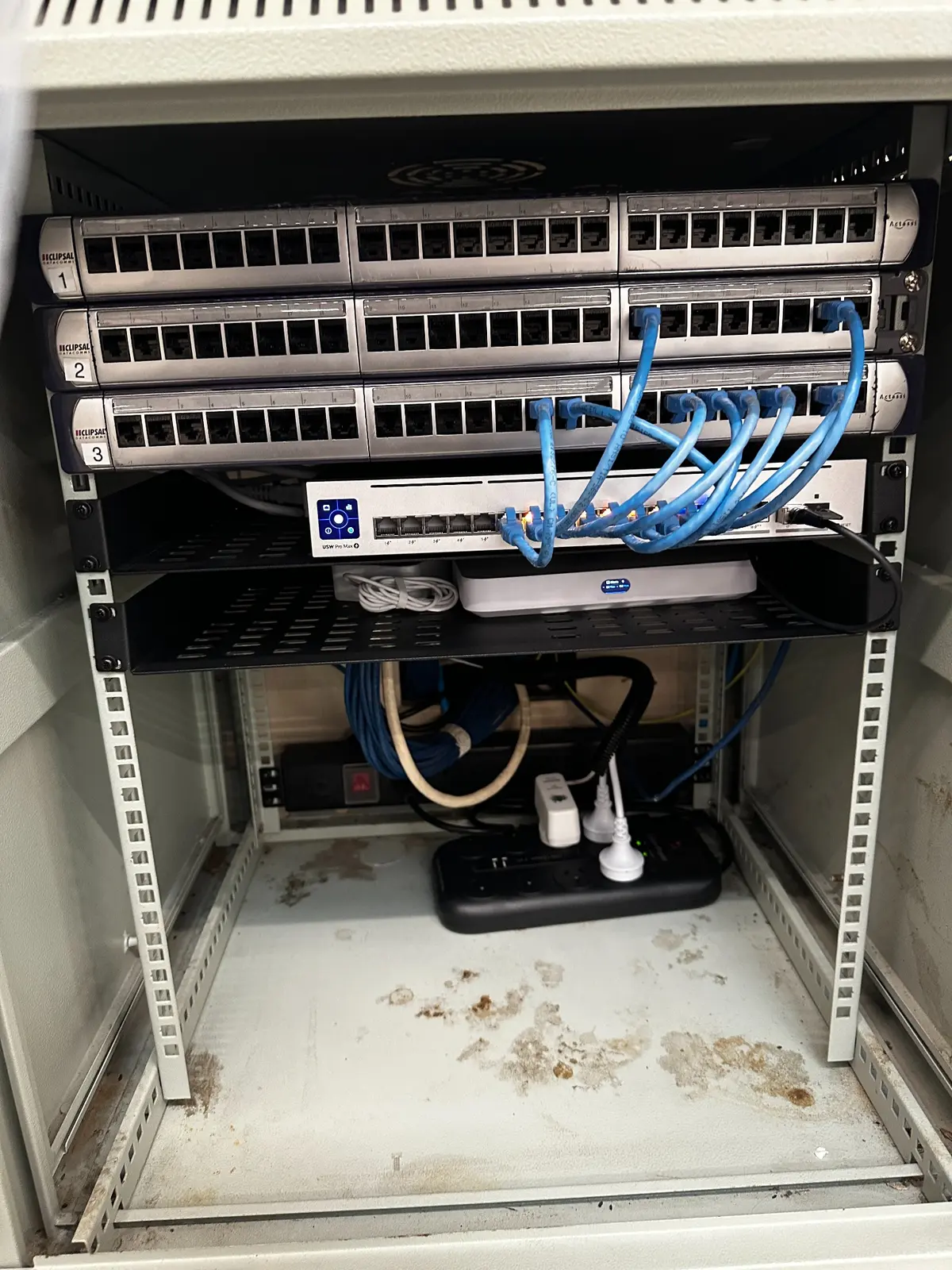
A clean rack is not cosmetic alone. It makes active connections easier to identify, reduces accidental disconnections and gives future support work a reliable starting point.
A good switching design should consider:
The number of current wired devices and realistic future growth
PoE and PoE+ requirements for access points, phones and cameras
Whether 1Gb, 2.5Gb or faster access ports are required
The speed of the gateway-to-switch uplink
VLAN capability for network segmentation
Monitoring, firmware and support requirements
Power protection and the impact of an outage
The objective is not to buy the largest switch available. It is to select a switch that supports the access points, security design, internet service and expected growth without making the cabinet unnecessarily complicated.
Step 4: Position Access Points for Coverage and Capacity
An open office does not automatically need only one access point. Large floor areas, mezzanines, meeting rooms, structural materials, neighbouring networks and the number of connected devices can all change the design.
The Fitzroy office used two access points. One was mounted to the ceiling and one to a wall using tested existing cabling. The positions served different parts of the office while allowing the radios to operate as one coordinated wireless system.
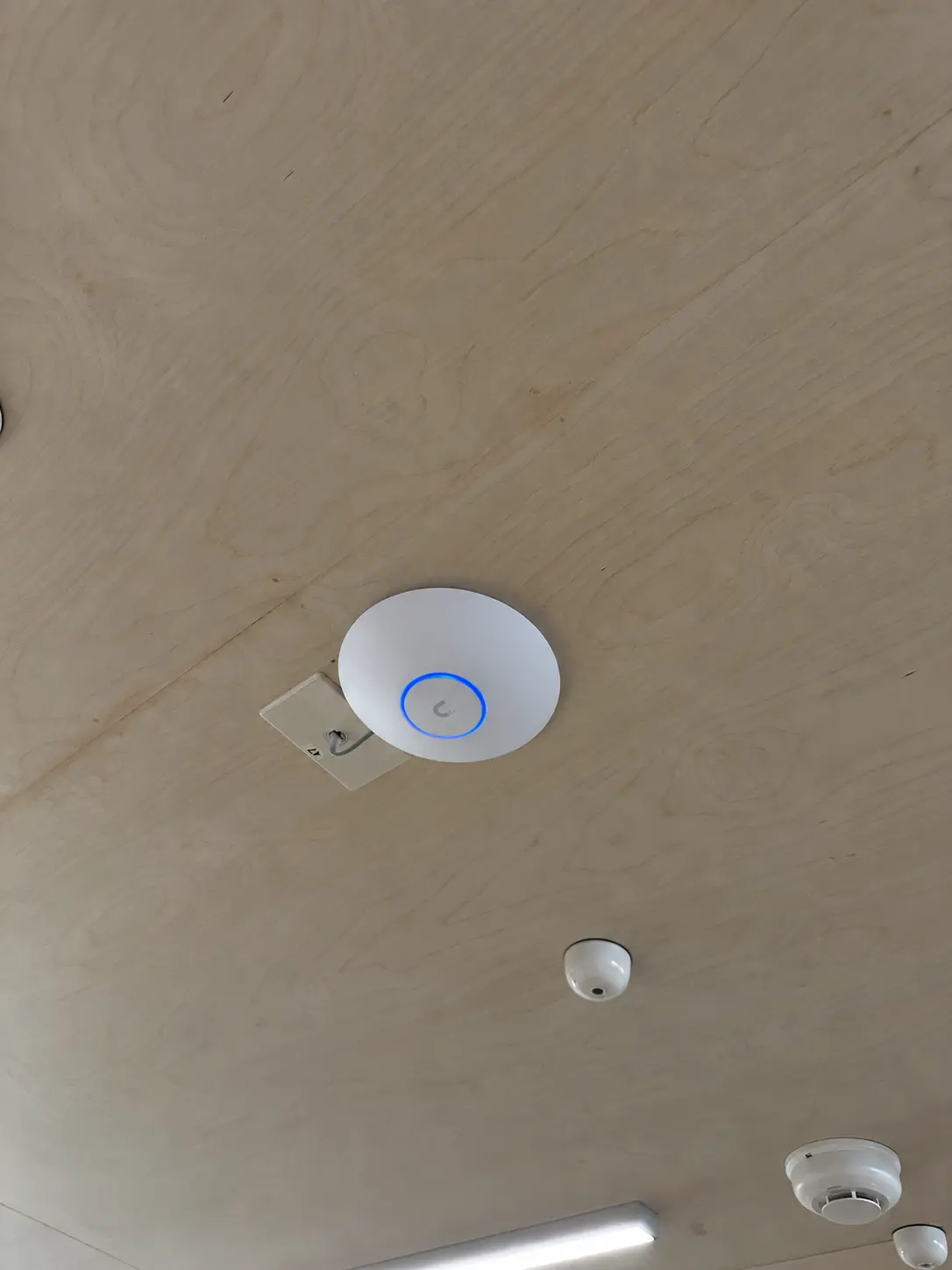
The ceiling access point was installed using suitable existing cabling and then tested as part of the complete coverage design.
Access-point placement should avoid convenient but poor locations such as inside cabinets, directly behind dense obstructions or at one extreme end of the space when most users work elsewhere. It should also consider how devices move between work areas and whether meeting rooms or high-density zones need additional capacity.
Our article about when businesses should replace wireless access points explains the warning signs of ageing Wi-Fi infrastructure. For much larger or more complex spaces, the principles in our warehouse Wi-Fi site survey guide show why measuring the environment is more reliable than guessing.
Step 5: Measure Coverage and Tune Around Interference
Installing access points is not the end of a professional wireless deployment. The completed network needs to be measured in the places where people actually work.
A Wi-Fi heatmap helps show how coverage changes across the floor plan. It can identify areas where signal becomes weak, where overlapping access points may be too strong and where a device could remain attached to a distant access point instead of roaming to a better one.
In Fitzroy, BITS Melbourne tested wireless coverage, reviewed the surrounding radio environment and finely tuned the access-point settings to manage interference. That work can include:
Selecting appropriate channels rather than leaving every radio on an unsuitable automatic choice
Balancing channel width against congestion and stability
Adjusting transmit power so access points do not shout over each other
Confirming the role of 2.4GHz, 5GHz and 6GHz bands for the actual client mix
Checking signal strength and quality in work areas, meeting rooms and transition zones
Testing roaming and application behaviour rather than measuring signal alone
Higher radio power is not automatically better. A laptop or phone may be able to hear a powerful access point while lacking enough transmit power to reply reliably. Excessive coverage overlap can also make roaming less predictable. The appropriate settings depend on the office, client devices and neighbouring wireless activity.
Step 6: Separate Corporate, Guest, IoT and CCTV Traffic
A modern office contains more than employee laptops. Visitors bring unmanaged devices. Smart displays, building systems and other IoT equipment may require internet access without needing access to company files. Cameras and recorders have their own security and performance considerations.
Placing every device on one flat network gives those groups more access to each other than they normally require. Segmentation creates defined boundaries and supports clearer policies.
| Network | Typical devices | Design objective |
|---|---|---|
Corporate | Approved staff computers, managed business devices and authorised services | Provide trusted access to the resources required for work |
Guest | Visitor phones, tablets and personally owned devices | Provide internet access without exposing internal business resources |
IoT | Connected displays, appliances and other embedded devices | Limit communication to the destinations and services genuinely required |
CCTV | Cameras, recorders and authorised viewing systems | Keep surveillance traffic within a controlled security boundary |
The Fitzroy network was configured with all four groups inside the new UniFi environment. The purpose was not to create unnecessary complexity. It was to make trust intentional and to provide a cleaner foundation for future devices.
Segmentation must be accompanied by testing and documentation. A VLAN that accidentally blocks a required service can disrupt operations, while a firewall rule that allows everything between networks removes much of the intended benefit. The design should reflect real workflows, and the final rules should be reviewed when new systems are introduced.
Step 7: Test More Than the Headline Speed
Speed testing is useful, but it should be interpreted correctly. The Fitzroy test recorded 2,094.6 Mbps download, 512.6 Mbps upload and 1 ms latency. That was a strong validation that the gateway, switching and tested wireless path could make use of the new service.
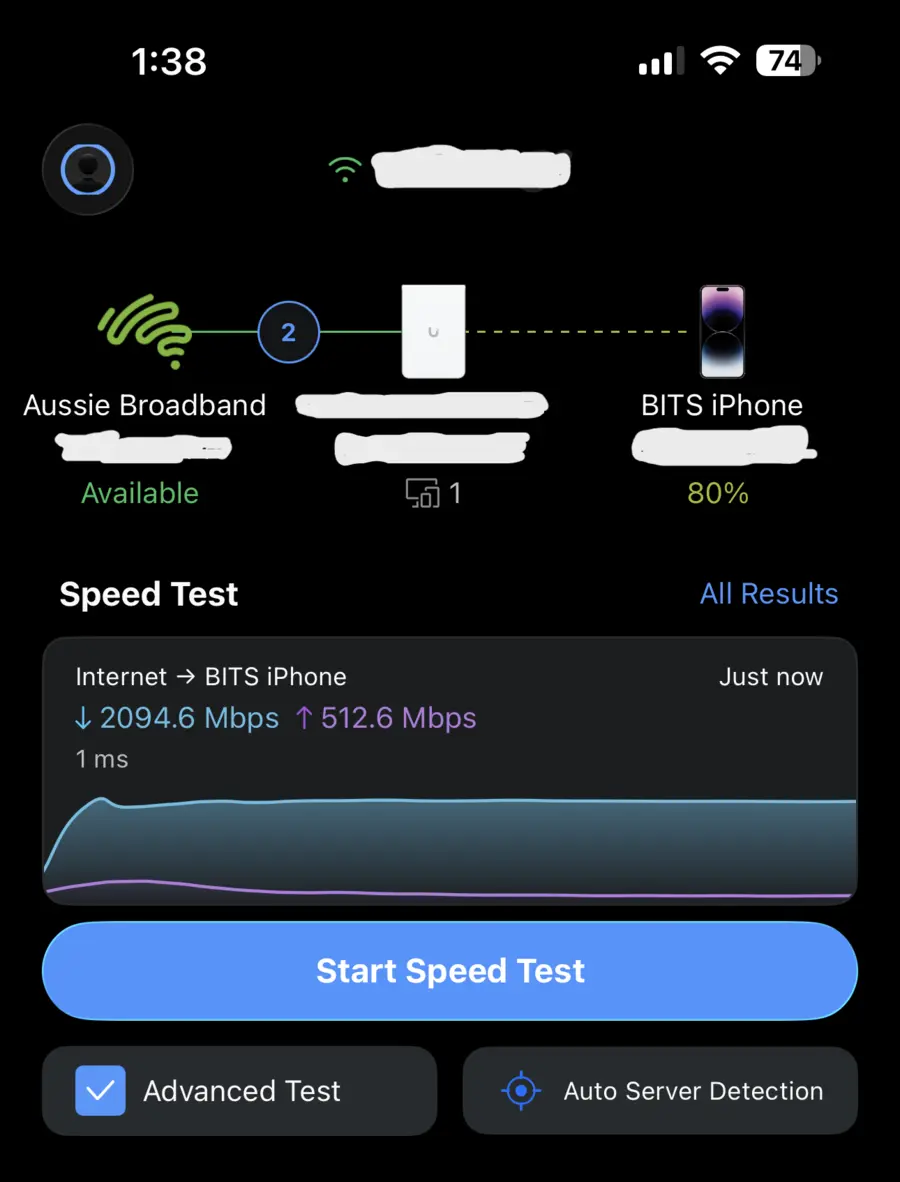
The recorded onsite test reached the intended multi-gig performance after the network upgrade.
However, one result taken with a capable device does not mean every device will always reach the same number. Performance varies with the client radio, distance, band, channel conditions, application server and current network demand.
A complete acceptance test should also check:
Coverage and signal quality throughout normal work areas
Roaming between access points
Access to approved resources from the corporate network
Isolation of guest and untrusted device networks
Camera, IoT, printer and other required device behaviour
Wired link speeds and switch uplinks
Video calls, cloud applications and other important workflows
Monitoring, alerts and remote administration
This broader testing confirms that the office works—not only that one test device can produce a large number.
Step 8: Document the Network for the Customer
A technically successful installation can still become a support problem if no one knows how it was assembled. The customer should not be dependent on one person's memory to identify the internet path or understand which switch ports serve the access points.
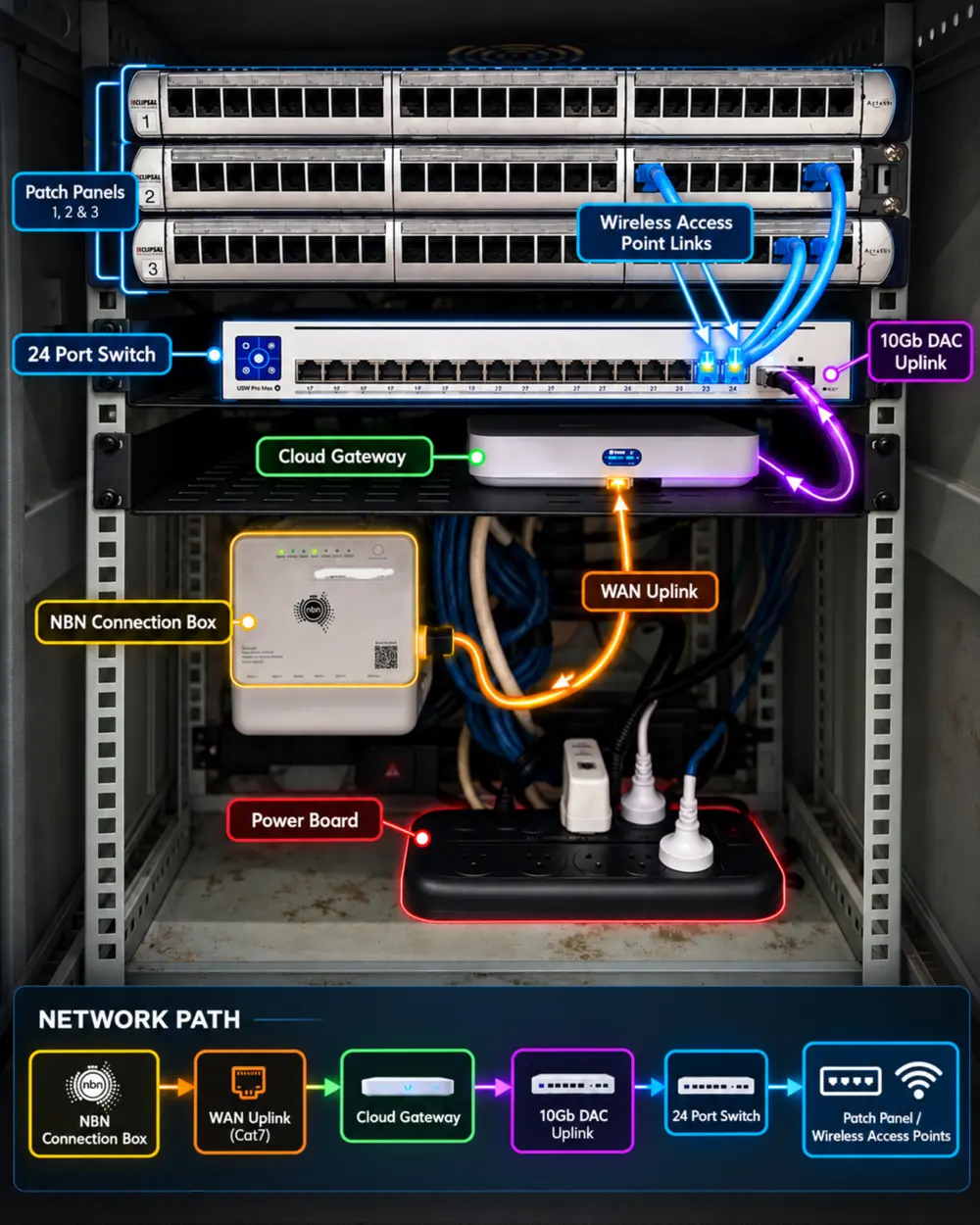
The Fitzroy handover included a visual network path, device breakdown and recovery information based on the actual installation.
The documentation supplied for this project recorded each device, how it was connected and the appropriate recovery or reset process. Useful network documentation can include:
An equipment inventory with model, serial number, role and location
A diagram showing the internet, gateway, switch, patch panels and access points
Switch-port and cabling information
Network names, VLAN purposes and addressing information
Internet provider and service details
Administrator ownership and secure credential storage
Backup, recovery and factory-reset guidance
Support contacts, warranties and renewal information
Sensitive passwords should be kept in an appropriate password-management system rather than placed openly inside a diagram. The documentation should be detailed enough to support the business while still protecting privileged access.
Common Office Network Upgrade Mistakes
The same avoidable issues appear repeatedly in office moves and network refreshes:
Ordering faster internet without checking the gateway. The old router becomes the limit and the business receives little practical benefit.
Adding access points without measuring interference. More radios can create more contention when channels and power are not coordinated.
Mounting access points where installation is easiest. A convenient corner or cabinet can be a poor location for users.
Leaving every device on one network. Guests, IoT equipment and cameras receive unnecessary proximity to trusted systems.
Removing old cabling without testing it. A live controller, phone or camera may be disconnected accidentally.
Keeping obsolete equipment powered indefinitely. It consumes space and power while making troubleshooting harder.
Skipping documentation. Future support begins with rediscovery instead of a reliable record.
Testing only beside the access point. The strongest location says little about meeting rooms, workstations or roaming.
An Office Network Upgrade Checklist
Before approving a new office network, use this checklist to make the scope visible.
Document the business requirement. Record users, critical applications, wired devices, wireless devices, guest requirements, cameras and expected growth.
Confirm the internet service. Check technology, download and upload speed, handoff, IP requirements, lead time, support commitments and backup options.
Audit the cabinet and cabling. Test existing runs and identify what can be safely reused, retired or replaced.
Size the gateway. Confirm port speeds and real throughput with the security features that will be enabled.
Size the switching. Allow for active ports, PoE demand, VLANs, multi-gig access and appropriate uplinks.
Design the Wi-Fi. Choose access-point locations around coverage, capacity, interference and real work areas.
Define network boundaries. Decide how corporate, guest, IoT, CCTV and other device groups should communicate.
Stage before cutover. Apply firmware, configuration, names and security settings before the office depends on the equipment.
Test the completed environment. Validate performance, coverage, roaming, isolation and important business workflows.
Provide a handover. Record the devices, connections, network purpose, ownership, support path and recovery information.
Should the Network Become Part of Managed IT Services?
An office network is not static after installation. Firmware changes, new devices are connected, internet requirements grow and the surrounding wireless environment can change. Monitoring and ongoing management can help identify failed links, capacity issues, offline access points and configuration drift before they become long-running problems.
For businesses that want proactive support, our managed IT services in Melbourne can bring the network into the same support and documentation process as computers, Microsoft 365, security and backups. Our business IT support is also available when a business needs onsite and remote assistance across the wider environment.
A managed contract is not mandatory for every network project. A defined office move, remediation or rollout may be suitable for ad hoc IT support. The important point is that responsibility after handover is clear: who monitors the equipment, who receives alerts, who maintains firmware and who staff contact when something stops working.
Frequently Asked Questions
Can a business really use a 2Gb internet plan over Wi-Fi?
A capable client, suitable access point, multi-gig wired backhaul and good radio conditions may exceed 1Gb in a local test, but results vary between devices and locations. The design should support the service without promising that every phone or laptop will always achieve the full plan speed.
How many access points does an open-plan office need?
Floor area alone is not enough to decide. Layout, building materials, ceiling height, neighbouring networks, device density and required applications all affect the answer. The Fitzroy office used two access points, but another office of similar size could require a different design.
Can existing network cabling be reused?
Yes, when it is suitable for the required link speed, correctly terminated, in usable condition and positioned appropriately. Testing should occur before the project relies on it. Reusing verified cabling can reduce disruption and unnecessary cost.
Why separate guest, IoT and CCTV devices?
Those devices normally do not need the same access as managed staff computers. Segmentation reduces unnecessary trust, makes policies clearer and can limit how far a compromised or misconfigured device can communicate.
Does BITS Melbourne provide Wi-Fi heatmaps?
Yes. For suitable Melbourne office and warehouse projects, BITS Melbourne can measure coverage, produce heatmaps, assess interference and tune access-point placement and radio settings around the actual site.
Can BITS Melbourne work with our internal IT team or interstate provider?
Yes. We can deliver a defined Melbourne workstream, provide onsite technical assistance, follow an approved design and return testing and documentation to the organisation responsible for the wider environment.
Plan the Whole Network, Not Just the Internet Connection
The Fitzroy project demonstrates what changes when an office network is treated as one system. The new internet plan, gateway, switch, access points, network segmentation, radio tuning and documentation were all designed around the same operational outcome.
The result was a clean communications rack, a multi-gig path capable of supporting the new service, coverage across the office, clearer security boundaries and a useful handover for the customer. Just as importantly, obsolete equipment and uncertainty were removed from the environment.
If your business is moving office, upgrading internet or struggling with unreliable Wi-Fi, BITS Melbourne can assess the current setup and recommend a practical sequence. Start with a free business IT assessment or review our complete Fitzroy office network case study.
How BITS Melbourne can help
BITS Melbourne works with small and growing organisations across Melbourne to assess technology, resolve recurring problems and build practical long-term improvements. You deal directly with experienced technicians who can support users remotely, attend onsite and connect the issue to the wider business environment.