
BITS Melbourne helps local businesses strengthen their cybersecurity with layered protection across Microsoft 365, email, devices, passwords, backups and networks.
Cybersecurity is no longer something only large organisations need to worry about.
Small businesses hold valuable information, use online banking, rely on cloud services and regularly communicate with customers and suppliers by email. This makes them attractive targets for phishing, ransomware, business email compromise, password theft and other cyberattacks.
The problem is that many small businesses do not know whether their cybersecurity is working until something goes wrong.
An employee clicks a phishing link. A Microsoft 365 account is compromised. Files are encrypted by ransomware. An invoice payment is redirected. A former employee still has access to company information. A backup fails when the business needs it most.
Good cybersecurity is not about installing one antivirus product and assuming the business is protected. It requires several security layers working together across your people, devices, email accounts, cloud services, network and business data.
This small business cybersecurity checklist covers 15 practical steps Melbourne businesses can take to reduce their risk and improve their ability to recover from an incident.
Why small businesses need a cybersecurity checklist
Small businesses often have limited internal IT resources, but they still use many of the same systems as larger organisations.

BITS Melbourne helps small businesses identify and address cybersecurity risks across their accounts, devices, email, cloud services and networks.
A typical Melbourne business may rely on:
Microsoft 365
Outlook email
OneDrive and SharePoint
Online banking
Cloud accounting software
Customer databases
Remote-access tools
Laptops and mobile devices
Wi-Fi and internet-connected equipment
Industry-specific applications
Each system introduces accounts, devices, permissions and business information that need to be protected.
The Australian Signals Directorate’s Australian Cyber Security Centre provides a dedicated cybersecurity checklist for small businesses. Its recommendations include multi-factor authentication, password management, automatic updates, secure backups, restricted access and employee education.
The ACSC also recommends the Essential Eight as a baseline set of mitigation strategies. However, implementing the Essential Eight properly involves more than simply purchasing eight security products. The controls need to be selected, configured, monitored and regularly reviewed.
The following checklist translates these cybersecurity principles into practical actions for a small or medium Melbourne business.
The 15-step small business cybersecurity checklist
1. Enable multi-factor authentication
Multi-factor authentication, commonly called MFA, adds another verification step when someone signs in to an account.
Instead of relying only on a password, the user must provide additional evidence of their identity. This may include an authenticator application, security key, biometric check or temporary verification code.
MFA should be enabled for important business systems, including:
Microsoft 365
Email accounts
Online banking
Accounting platforms
Cloud storage
Remote-access systems
Domain and website administration
Password managers
Social media accounts
Cybersecurity management portals
MFA can make it significantly harder for an attacker to access an account using a stolen password.
However, not all authentication methods provide the same protection. SMS codes are generally better than using a password alone, but authenticator applications, number matching and phishing-resistant security keys may offer stronger protection.
Businesses should also educate employees never to approve an unexpected MFA notification. Repeated authentication prompts can be part of an attack designed to pressure the user into approving access.
Checklist:
MFA is enabled for all Microsoft 365 users.
Administrative accounts use strong authentication.
MFA is enabled on other critical business platforms.
Employees know not to approve unexpected login requests.
2. Use unique passwords and a business password manager
Reusing passwords is one of the most common ways a compromise spreads between accounts.
If an employee uses the same password for a business account and an unrelated website, a breach affecting that website could expose credentials that also unlock company systems.
Every business account should use a strong and unique password or passphrase.
A business password manager makes this practical by securely creating, storing and sharing credentials. It also reduces the need for passwords to be kept in spreadsheets, notebooks, emails or web browsers that are not centrally managed.
A suitable business password manager should allow the organisation to:
Generate strong passwords
Store credentials securely
Share passwords without revealing them unnecessarily
Remove access when an employee leaves
separate personal and business credentials
Review shared account access
Apply security policies across the business
At BITS Melbourne, password management can be centrally configured and maintained as part of a managed security environment.
Checklist:
Every important account has a unique password.
Employees use an approved business password manager.
Passwords are not stored in documents, emails or notebooks.
Shared credentials are limited and controlled.
3. Protect Microsoft 365 properly
Microsoft 365 often contains a business’s email, documents, customer information, Teams conversations and internal files. Securing it should therefore be a priority.
Simply purchasing Microsoft 365 licences does not mean the environment has been securely configured.
Businesses should review:
Administrative roles
Sign-in alerts
Legacy authentication
External email forwarding
Outlook inbox rules
Guest-user access
SharePoint permissions
OneDrive sharing
Connected applications
Inactive accounts
Audit and security logging
Administrative accounts require particular attention because they may provide access to multiple users, services and security settings.
Administrators should use separate accounts for administration and everyday email wherever practical. The number of people with elevated access should also be kept to a minimum.
Checklist:
Microsoft 365 security settings have been professionally reviewed.
Administrator access is restricted.
Suspicious sign-ins and mailbox activity are monitored.
External sharing and forwarding are controlled.
Unused accounts are removed or disabled.
4. Use advanced email filtering
Standard spam filtering may stop basic junk email, but modern phishing attacks can be much more sophisticated.
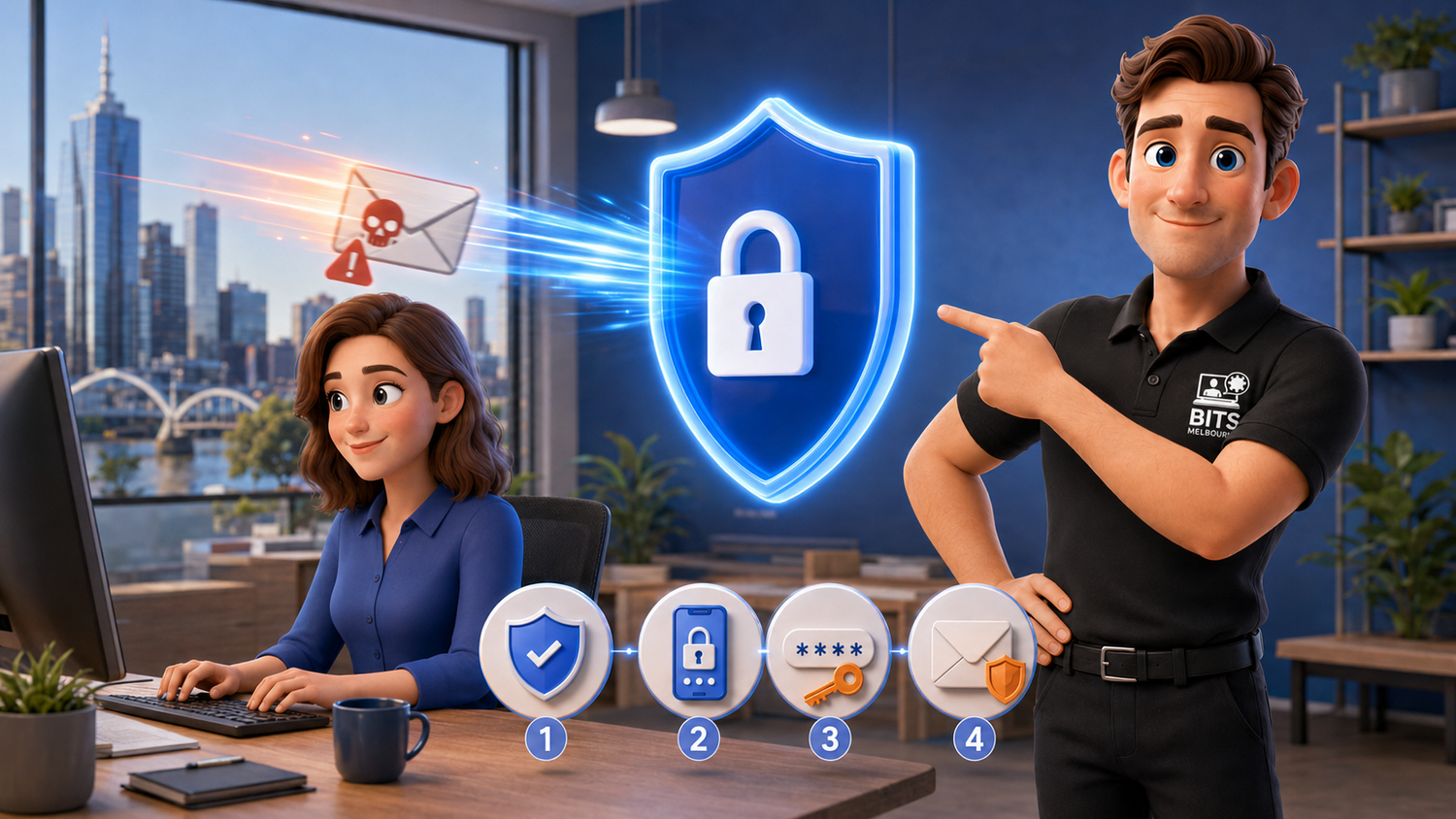
Multi-factor authentication, secure passwords and advanced email filtering work together to help prevent phishing and account compromise.
A malicious message may appear to be:
A Microsoft 365 password warning
A shared OneDrive document
An unpaid supplier invoice
A missed voicemail notification
A delivery update
A request from a manager
A change to banking details
A legitimate reply within an existing conversation
Advanced email security can inspect links, attachments, sender behaviour and message patterns before potentially dangerous emails reach an employee’s inbox.
It can also identify attempts to impersonate the business’s domain, executives, suppliers or other trusted contacts.
BITS Melbourne uses managed email-security solutions to add another protection layer around Microsoft 365 environments.
Checklist:
Incoming email is inspected for phishing and malicious attachments.
Impersonation protection is enabled.
Suspicious links are analysed.
Employees can easily report suspicious messages.
Email-security alerts are actively monitored.
5. Keep computers and software patched
Cybercriminals regularly exploit known vulnerabilities in operating systems, web browsers and business applications.
Software vendors release security updates to fix these weaknesses, but those updates only help when they are installed.
Businesses should have a patch-management process covering:
Windows and macOS
Microsoft Office
Web browsers
PDF software
Communication applications
Remote-access tools
Business software
Network equipment
Mobile devices
Relying on every employee to install updates manually can lead to important patches being delayed or ignored.
Managed patching allows updates to be monitored, scheduled and deployed consistently. It can also identify devices that are offline, out of date or no longer supported.
Checklist:
Automatic operating-system updates are enabled.
Third-party applications are also patched.
Update status is centrally monitored.
Unsupported devices and software are replaced.
Critical security updates are prioritised.
6. Protect every business device
Every laptop, desktop and server that connects to business systems can become an entry point for an attacker.
Traditional antivirus is still useful, but modern business protection should also be able to detect unusual behaviour, suspicious processes and activity that may indicate an active threat.
Depending on the organisation’s requirements, endpoint protection may include:
Managed antivirus
Endpoint detection and response
Threat monitoring
Ransomware protection
Automated isolation
Application control
Security alert investigation
Device health monitoring
A security product is only valuable if it is correctly configured and someone responds when it produces an alert.
BITS Melbourne combines endpoint security with active monitoring and management, helping ensure suspicious activity is investigated instead of being left unnoticed.
Checklist:
Every business device has managed endpoint protection.
Security software cannot be disabled by standard users.
Alerts are monitored by an IT or cybersecurity provider.
Old and unauthorised devices are removed from the environment.
7. Control which applications can run
Antivirus software attempts to identify malicious files. Application allowlisting takes another approach by controlling which programs are permitted to execute.
This can help stop:
Unknown applications
Malicious scripts
Unauthorised software
Ransomware
Programs downloaded by employees
Tools used by attackers after gaining access
BITS Melbourne provides application control through BITS Locker, powered by ThreatLocker. If an employee needs to run an application that has not yet been approved, they can submit a request for assessment.
This is especially valuable for businesses that want stronger protection against unauthorised software without preventing employees from doing their jobs.
Checklist:
Employees cannot freely install unapproved software.
Unknown applications are blocked or assessed.
Administrative rights are restricted.
Application requests follow an approval process.
8. Filter dangerous websites and online content
Employees do not need to intentionally visit a dangerous website to expose the business to risk.
A malicious page may be reached through:
A phishing email
A compromised website
A misleading advertisement
A mistyped domain
A fake download
A search-engine result
A link in a messaging application
DNS and web filtering can prevent devices from connecting to known malicious, fraudulent or inappropriate destinations.
Filtering can also apply protection when an employee works away from the office, provided the security agent is installed and correctly configured on the device.
This adds another opportunity to stop an attack before malware is downloaded or credentials are entered into a fraudulent website.
Checklist:
Known malicious websites are blocked.
Filtering applies both inside and outside the office.
Security policies are centrally managed.
Blocked activity can be reviewed and investigated.
9. Back up Microsoft 365 and important business data
Many businesses assume Microsoft automatically provides a complete independent backup of everything stored in Microsoft 365.

Independent Microsoft 365 backup provides additional recovery options for business email, OneDrive, SharePoint, Teams and important company data.
Microsoft provides resilient cloud infrastructure and several retention features, but businesses are still responsible for protecting their information against risks such as:
Accidental deletion
Malicious deletion
Ransomware
Incorrect retention settings
Account compromise
Employee actions
Extended discovery delays
Data removed before anyone notices
An independent Microsoft 365 backup can protect Exchange mailboxes, OneDrive, SharePoint and Teams data outside the live Microsoft environment.
Businesses may also need backups for:
Servers
Workstations
Databases
Accounting files
Industry applications
Website data
Network-device configurations
A backup is only useful if it can be restored. Restoration testing should therefore form part of the backup strategy.
Checklist:
Microsoft 365 data is backed up independently.
Important server and workstation data is protected.
Backups are automatic and monitored.
Backup failures generate alerts.
Recovery procedures are tested.
10. Remove unnecessary administrator access
Allowing employees to operate with administrator rights makes it easier for malware and unauthorised software to modify a device.
Most users do not need ongoing administrative access to perform their normal work.
Access should follow the principle of least privilege: each person receives only the permissions required for their role.
This principle should apply to:
Computers
Microsoft 365
Business applications
Cloud services
Shared folders
Financial systems
Website administration
Network equipment
Privileged accounts should be protected separately and reviewed regularly.
Checklist:
Standard employees do not have local administrator access.
Microsoft 365 administrator roles are limited.
High-level access is assigned only when required.
Privileged accounts use MFA and unique credentials.
Permissions are regularly reviewed.
11. Create a consistent onboarding and offboarding process
Cybersecurity problems can begin when employees receive too much access—or retain access after leaving the business.
A documented onboarding process helps ensure new employees receive the correct accounts, permissions, devices and security settings.
A proper offboarding process should include:
Disabling Microsoft 365 access
Revoking active sessions
Removing access to cloud applications
Recovering company equipment
Transferring business files and email
Removing password-manager access
Changing shared credentials where necessary
Removing remote access
Reviewing mailbox forwarding
Preserving required business data
Offboarding should happen promptly. Waiting several days to disable an account creates unnecessary risk.
Checklist:
New users follow a documented setup process.
Access matches the employee’s role.
Departing employees are disabled immediately.
Company devices and information are recovered.
Permissions are reviewed when roles change.
12. Secure the business network and Wi-Fi
Firewalls, wireless access points, switches and internet connections are the foundation of a business network.

A properly configured firewall, secure Wi-Fi and network separation help protect critical business systems from unauthorised devices and access.
Poorly configured or outdated equipment can introduce security and reliability problems.
A secure business network should include:
A properly configured business-grade firewall
Supported network equipment
Strong Wi-Fi security
Separate guest Wi-Fi
Secure administrative credentials
Updated device firmware
Restricted remote administration
Network monitoring
Secure VPN or managed remote access
Segmentation where appropriate
Guest devices, cameras, smart equipment and other internet-connected devices should not automatically share unrestricted access to critical business systems.
Checklist:
The business uses a supported, business-grade firewall.
Guest Wi-Fi is separated from business systems.
Default administrator passwords have been changed.
Network firmware is kept current.
Remote access is secured and monitored.
13. Train employees to recognise and report threats
Employees are regularly targeted because attackers know that people can be easier to deceive than security software.
Training should help employees identify:
Fake Microsoft login pages
Unexpected MFA prompts
Invoice-redirection attempts
Executive impersonation
Malicious attachments
Suspicious links
Unusual payment requests
Fake file-sharing notifications
Requests for passwords or sensitive information
Training should not blame employees for making mistakes. Staff should feel comfortable reporting a suspicious email or accidental click immediately.
The earlier an incident is reported, the more time the business has to block access, reset credentials and investigate what happened.
Checklist:
Employees receive practical cybersecurity awareness training.
Payment changes require independent verification.
Staff know how to report a suspicious email.
Employees are encouraged to report mistakes immediately.
14. Monitor systems and respond to security alerts
Installing cybersecurity products is not the same as having active cybersecurity management.
Security platforms may detect suspicious activity, but an alert still needs to be reviewed. Someone must determine whether it represents harmless behaviour, a misconfiguration or a genuine attack.
Ongoing monitoring can help identify:
Suspicious login activity
Malware detections
Unusual applications
Disabled security software
Missing updates
Backup failures
Devices that stop reporting
Potential ransomware behaviour
Account or mailbox changes
BITS Melbourne uses managed security tools including Huntress, ThreatLocker, DNSFilter, endpoint protection, email filtering and proactive device monitoring. These layers help prevent threats while also providing visibility when something unusual occurs.
Checklist:
Security alerts go to someone responsible for reviewing them.
Device and backup status is monitored.
Suspicious behaviour is investigated.
The business knows who to contact during an incident.
Critical alerts are handled promptly.
15. Create and test a cyber incident response plan
Even strong cybersecurity cannot guarantee that an incident will never occur.

Active monitoring and a documented incident-response plan help businesses contain cyber threats, recover information and maintain operations.
Businesses need to know what to do if:
An employee enters a password into a phishing website
A laptop is lost or stolen
A Microsoft 365 account is compromised
Files are encrypted by ransomware
Fraudulent emails are sent from a company account
Business data is deleted
An unauthorised person gains access
A critical system becomes unavailable
An incident-response plan should identify:
Who employees should contact
Who can disable accounts
How compromised devices will be isolated
Where backups are stored
How customers and suppliers may be notified
Which external specialists may be needed
How business operations will continue
How evidence and activity logs will be preserved
Whether legal, insurance or regulatory advice is required
The plan should be written down, accessible during an outage and reviewed regularly.
Checklist:
The business has a documented response plan.
Employees know how to report an incident.
Emergency contact details are available.
Backup restoration has been tested.
The plan is reviewed after business or technology changes.
Incident response and technology recovery should be planned together. See our step-by-step small business IT disaster recovery guide for recovery targets, system dependencies, backup testing and the process for returning critical services safely.
How does the Essential Eight apply to small businesses?
The Essential Eight is a set of cybersecurity mitigation strategies developed by the Australian Signals Directorate.
It covers:
Application control
Patch applications
Configure Microsoft Office macro settings
User application hardening
Restrict administrative privileges
Patch operating systems
Multi-factor authentication
Regular backups
These controls provide a valuable security framework, but the correct implementation will depend on the business’s systems, risk profile and operational requirements.
A small construction company, medical practice, accounting firm and warehouse may use very different applications and handle different types of sensitive information.
For this reason, a business should avoid treating the Essential Eight as a generic box-ticking exercise. Controls should be implemented in a way that provides meaningful protection without unnecessarily disrupting business operations.
It is also important not to claim a particular Essential Eight maturity level without properly assessing the organisation against the applicable requirements.
The Australian Cyber Security Centre provides official Essential Eight guidance and a dedicated Small Business Cyber Security Hub.
How many items can your business confidently tick off?
Review the checklist honestly.
If your business has MFA but no monitored backups, it still has a significant recovery risk.
If you have antivirus but employees can install any application they want, malicious software may still run.
If your email is filtered but former employees retain access, sensitive business information could remain exposed.
If security alerts are generated but nobody reviews them, attacks may go unnoticed.
Cybersecurity works best when multiple controls support one another.
A well-protected small business should have security covering five broad areas:
Area | What should be protected |
Accounts | MFA, unique passwords and restricted permissions |
Devices | Endpoint protection, patching and application control |
Email and web | Email filtering, DNS protection and user education |
Data | Independent backups, monitoring and tested recovery |
Response | Active security monitoring and an incident-response plan |
Common cybersecurity gaps in Melbourne small businesses
When reviewing small-business IT environments, some of the most common weaknesses include:
MFA enabled for some users but not everyone
Shared passwords stored in spreadsheets
Employees operating as local administrators
No independent Microsoft 365 backup
Consumer-grade or unsupported network equipment
Former employees still appearing in business systems
Antivirus installed but not actively monitored
Unpatched third-party applications
No restrictions on unauthorised software
Poor visibility over employee devices
No documented incident-response process
Backups that have never been tested
Microsoft 365 configured using default settings
Excessive administrator permissions
Cybersecurity products managed by different providers with no central oversight
Many of these problems can be corrected before an incident occurs with Business IT Support.
How BITS Melbourne helps protect small businesses
BITS Melbourne provides managed IT services and cybersecurity support for small and medium businesses across Melbourne.
Rather than relying on one security product, we can implement and manage multiple protection layers, including:
Huntress managed detection and response
ThreatLocker application control
Managed antivirus and endpoint security
DNSFilter web protection
Advanced email filtering
Microsoft 365 security configuration
Microsoft 365 cloud backup
Automated patch management
Device monitoring and management
Keeper business password management
User onboarding and offboarding
Network and firewall management
Security alert investigation
Remote and onsite IT support
Cybersecurity reviews and recommendations
We provide local business it support across Melbourne, including Tarneit, Werribee, Hoppers Crossing, Point Cook, Truganina, Derrimut, Ravenhall, Williamstown, Altona North and surrounding suburbs.
Our focus is not simply selling software. We help businesses implement, configure and manage their security so the different layers work together.
Is your business properly protected?
If you were unable to tick every item in this small business cybersecurity checklist, it does not necessarily mean you need to replace your entire IT environment.
The first step is understanding which risks are most important and where practical improvements can be made.
BITS Melbourne offers a free IT assessment for Melbourne businesses. We can review your current IT environment, identify security gaps and provide straightforward recommendations based on your business’s size, systems and requirements.
Book your free IT assessment with BITS Melbourne and find out whether your accounts, devices, email and business data are properly protected.
Frequently asked questions
What cybersecurity does a small business need?
At a minimum, a small business should use multi-factor authentication, unique passwords, a password manager, automatic patching, managed endpoint protection, secure backups, email filtering and restricted administrator access. The business should also train employees and have a plan for responding to security incidents.
Is antivirus enough for a small business?
No. Antivirus is only one part of business cybersecurity. It may not prevent account compromise, phishing, invoice fraud, password theft, malicious inbox rules or accidental data deletion. Businesses need multiple security layers across accounts, devices, email, web access and backups.
What is the Essential Eight?
The Essential Eight is a set of eight cybersecurity mitigation strategies developed by the Australian Signals Directorate. It covers application control, patching, Microsoft Office macro settings, application hardening, administrative privileges, multi-factor authentication and backups.
Does Microsoft 365 include a complete backup?
Microsoft provides resilient infrastructure and retention capabilities, but these should not automatically be treated as an independent business backup. A separate Microsoft 365 backup can provide additional protection and recovery options for Exchange, OneDrive, SharePoint and Teams data.
How often should a business review its cybersecurity?
Cybersecurity should be monitored continuously and formally reviewed at least annually. Another review should be completed after major staffing changes, business growth, an office move, introduction of a new system or a cybersecurity incident.
How much does small business cybersecurity cost?
The cost depends on the number of users and devices, the sensitivity of the information, existing systems and the level of management required. BITS Melbourne offers scalable managed security options, allowing businesses to select protection appropriate to their risks and budget.
Can BITS Melbourne review our current cybersecurity?
Yes. BITS Melbourne provides free IT assessments for eligible Melbourne businesses. We can review your devices, Microsoft 365 environment, backups, security tools and current IT arrangements, then explain any identified risks in plain language.
How BITS Melbourne can help
BITS Melbourne works with small and growing organisations across Melbourne to assess technology, resolve recurring problems and build practical long-term improvements. You deal directly with experienced technicians who can support users remotely, attend onsite and connect the issue to the wider business environment.